
Is Your App Ready for iPhone Duo? 5 Checks to Run Before You Ship
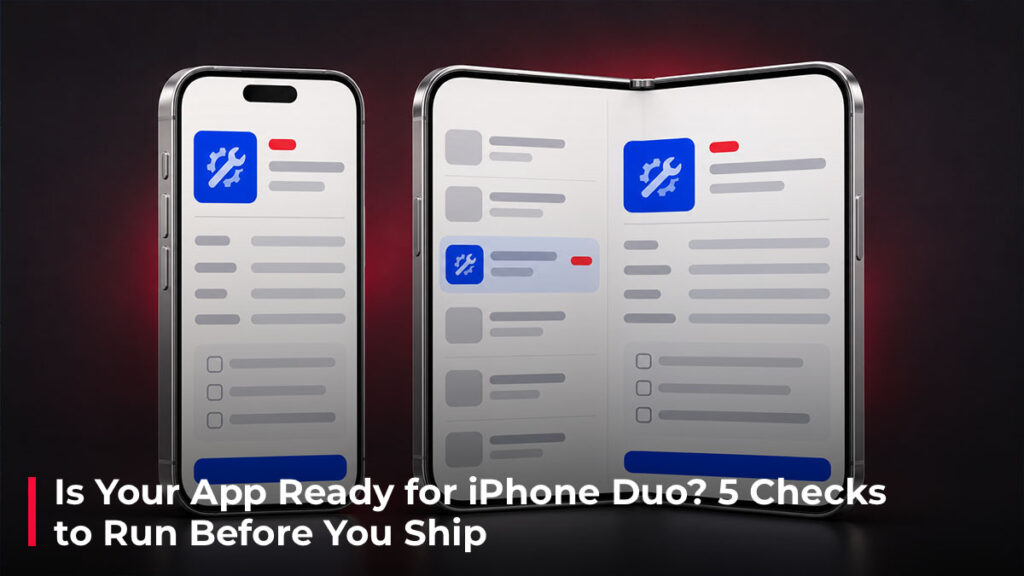
Open your app and start filling out a form. Leave it half-finished. Now unfold the phone.
Is everything you typed still there? Can you reach the Save button? What happens when you open a second app alongside yours?
Short answer: Your iOS app is ready for iPhone Duo when it can resize across the outer display, inner display, and Split View while keeping content readable, controls reachable, and in-progress work intact. Start with one workflow your users rely on, then run these five checks on the build you plan to ship.
1. Unfold the phone in the middle of a task
On iPhone Duo, someone can start a task on the outer display and open the device for more room. An app that resizes smoothly should carry the user’s work with it. A layout can look fine in screenshots and still dump someone back at the start of a form when the window changes size. Apple’s iPhone Duo preparation guide
Try it with a workflow that has something to lose. Add an item to a cart, enter a shipping address, then unfold before tapping Continue. Check the cart, the text you entered, and the checkout step you were on. Fold the phone again and finish the order in a test environment.
If resizing wipes the form, look at where its draft lives. A draft stored only in a view that gets rebuilt may disappear when the layout switches. Keep the draft and the user’s place in the workflow available to both layouts.
2. Let the layout respond to the space it has
Build the layout around the app’s current window or container size. A device model, an orientation flag, or a screen measurement saved at launch can give the wrong answer once the user folds the device or enters Split View. Apple’s guidance on resizable layouts
Say your app shows a list of work orders and a detail screen. In a narrow window, tapping an order opens its details. With room for two columns, the list can sit beside the selected order. If Split View narrows the window again, return to one column and keep the same order selected.
Give each column enough space to do its job. A wider window can still be short. Check that text wraps, images retain their focal point, and the primary action remains visible when the keyboard comes up.
3. Check where your buttons end up
On iPhone Duo, supported system bars can move to the side on the outer display and on the inner display in landscape. The inner display in portrait uses horizontal bars. If you’ve built a custom header or pinned a button to the screen edge, check that it respects the safe area on each edge. Safe area insets tell your layout how much space to leave around system UI, and the left and right values can differ. Apple’s guide to iPhone Duo navigation and toolbars
The hinge deserves its own check. On a partially folded inner display, a control that sits across the fold can be harder to see and tap. Apple calls areas like the fold and camera obstructions reserved regions. Many system components adapt to them automatically. Custom layouts that need to know where the fold is can read its geometry through native iOS APIs. Try moving a centered playback or confirmation button fully into one usable area. Apple’s guide to reserved regions and adaptive layouts
4. Check what SwiftUI, UIKit, React Native, or Flutter handles for you
The behavior you want is the same across frameworks. The APIs you use to measure the available space and manage navigation differ.
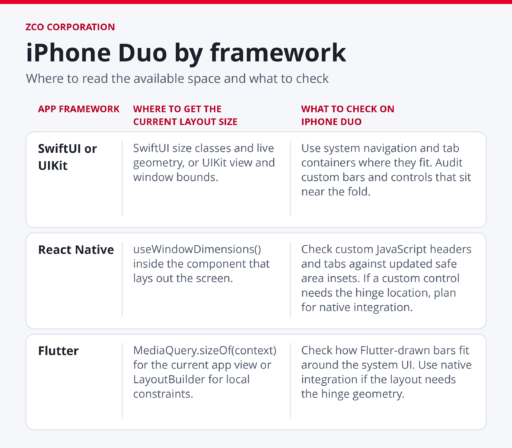
React Native window dimensions · Flutter adaptive layout guidance
Check the native iOS project as well. Apple documents full-display support with the iOS 27.1 SDK or later. UIKit-based apps built with the iOS 27 SDK or later need the scene-based lifecycle (UIScene) to launch. That includes the native host of a cross-platform app. Cold-launch the release build after updating the SDK or host configuration, especially if your app has a customized app delegate. Apple’s SDK compatibility guide · Apple’s UIKit scene migration guide · Flutter’s UIScene migration guide
5. Test the workflows your users came to finish
Pick a task that matters to your users, such as checking out, submitting an inspection, or completing onboarding. Run that same task in the iPhone Duo simulator in Xcode’s Device Hub. Keep the task in progress as you change the device configuration. Apple’s iPhone Duo simulator guidance
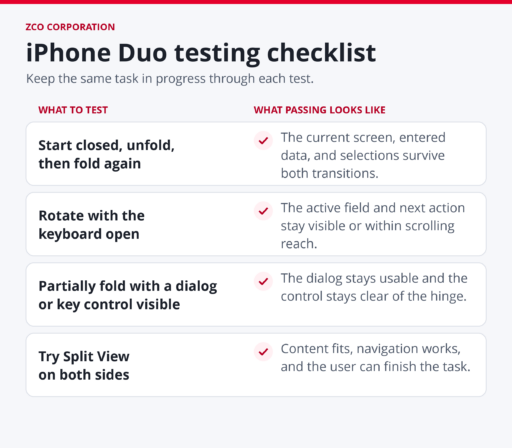
Fix lost work and blocked actions first. Then decide where the extra room makes the app more useful. In that work-order example, showing the list beside the detail pane saves users from backing out every time they need to open another order.
Frequently Asked Questions
Apps built with the iOS 26 SDK or earlier can run on iPhone Duo in a compatibility layout. The iOS 27 SDK gives apps more room on the inner display, and the iOS 27.1 SDK or later enables full-display layouts. Test the build you’ll actually ship because the SDK affects what users see. Apple’s SDK compatibility guide
An existing iOS app can support iPhone Duo with adaptive layouts. Start by making your current screens respond to the available space and preserve user progress. Add features such as a second column where they help users complete a task. Apple’s iPhone Duo design guidance
Use the iPhone Duo simulator in Xcode’s Device Hub to test folding, unfolding, rotation, and Split View. Start a workflow before changing the configuration so you can see whether the app keeps the user’s progress through the transition. Apple’s iPhone Duo preparation guide